
Dictate fast
Press a hotkey or click, speak, done. Recording, transcription, and output run without detours through other programs.
Blitztext Linux records your voice via hotkey or click, transcribes it locally with Whisper by default, and puts the text on your clipboard – with optional automatic pasting into the active application. Optional AI workflows polish the text before you use it.
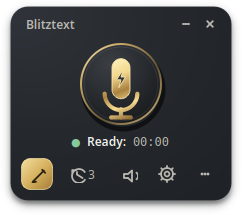
Press a hotkey or click, speak, done. Recording, transcription, and output run without detours through other programs.
Speech recognition runs on your machine by default – with openai-whisper or faster-whisper, without audio leaving your computer.
AI workflows rephrase, smooth the tone, or add emojis – only when you deliberately select them and have configured an API key.
The finished text lands on the clipboard. With a running ydotoold service, Blitztext can paste it right at your cursor position.
A lean, frameless PyQt6 widget with a tray icon and a German/English interface – built for KDE Plasma on Wayland.
Via global hotkey (hold Alt) or a click on the gold microphone in the widget or the tray menu. Widget and tray icon show the state: green ready, recording with a live timer and wave bars.
Whisper turns the recording into text locally. If you want, an AI workflow rewrites the result – with a selectable text action and an inspectable prompt.
The text is on your clipboard. With auto-paste enabled, Blitztext inserts it directly into the application where your cursor is.
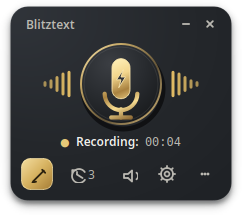
Everything described here is documented in the app repository and visible in the interface.
From plain dictation to AI rephrasing: every workflow has its own global hotkey and is also reachable via the tray menu and the widget.
A compact, frameless window with a gold microphone button, status dot, timer, wave bars, and a tool row for compose, history, read aloud, and settings.
Improve text, Shorten, Expand, Change tone, or a custom instruction – selectable in the widget, the Compose window, and the settings.
Type, paste, or dictate text and let the AI rewrite it without a microphone detour – with text action, tone selection, and signature support.
The AI results of a session stay available in the Compose window – step through them with the arrows above the result pane.
Before every AI call you can view and fully edit the system prompt and user message. No black box.
In dictation mode every transcript is saved as a Markdown note and can be merged on demand. The history keeps your recent transcripts at hand.
Have any text read aloud – locally with Piper TTS (default) or optionally via OpenAI Cloud TTS – and export the output as an audio file.
Store names, technical terms, and special vocabulary so transcription and AI workflows spell them correctly.
The app interface is fully available in German and English – switchable in the settings.
The configuration lives under ~/.config/blitztext-linux/ with restrictive permissions (0600). API keys are never stored in the config – they come from environment variables (secrets.env).
| Workflow | Hotkey | AI | Description |
|---|---|---|---|
| Dictate | Alt (hold) | No | Default: record, transcribe, output the text. |
| Dictate · local | Meta + Shift + H | No | Forces a purely local offline transcription. |
| Dictate & improve | Meta + Shift + T | Yes | Transcribes and rewrites the result with the selected text action. |
| Make it factual | Meta + Shift + D | Yes | Steam release: turns frustration into a matter-of-fact message. |
| Add emojis | Meta + Shift + E | Yes | Enriches your message with fitting emojis. |
Workflows marked as AI require an API key for OpenAI, OpenRouter, or a custom OpenAI-compatible endpoint. Without a key they stay disabled – dictation and local transcription keep working.
Real views from Blitztext Linux – no mockups.
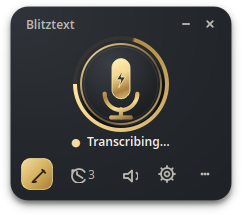
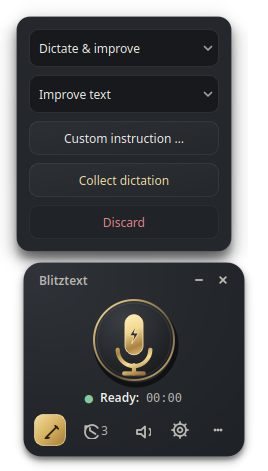
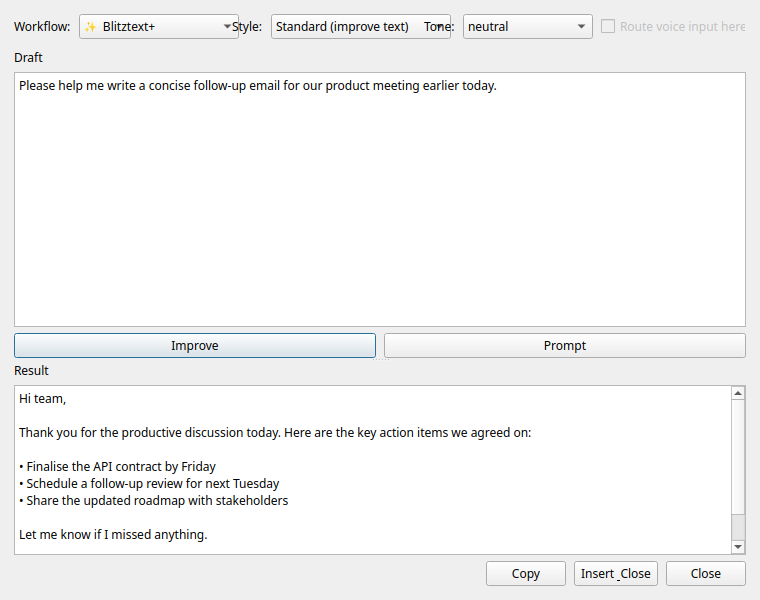
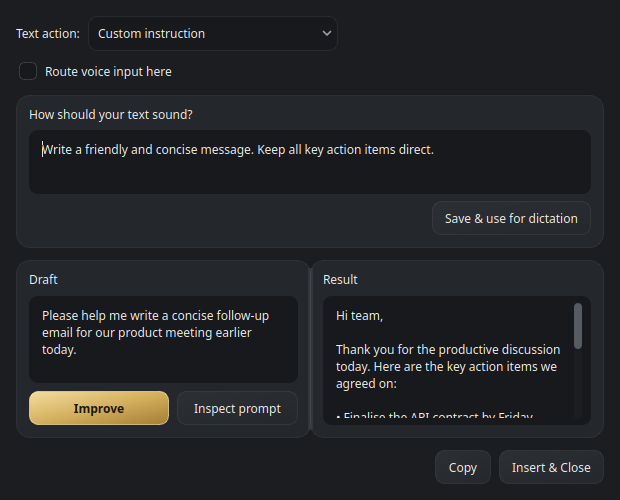
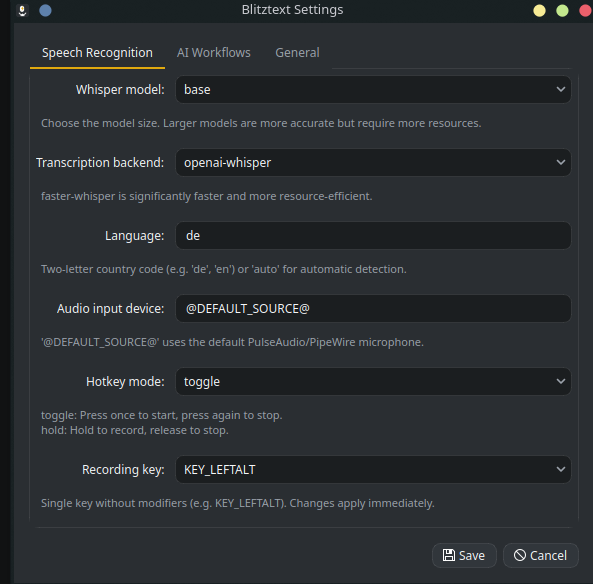
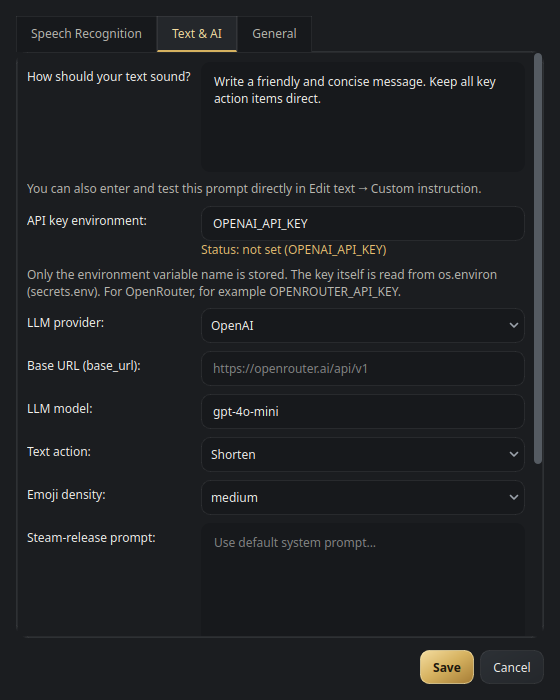
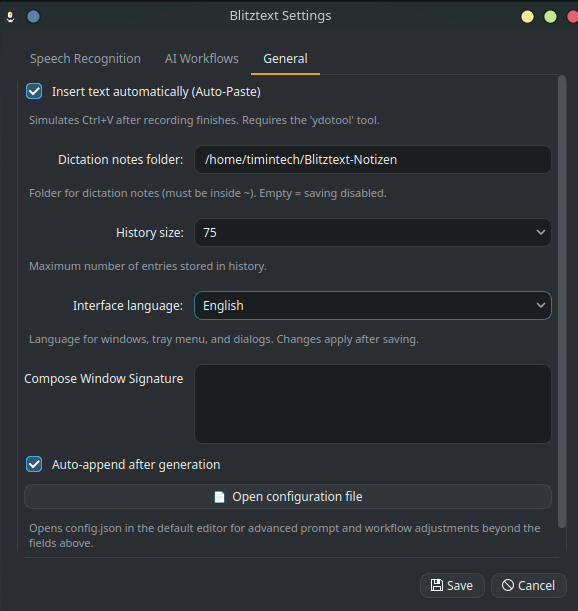
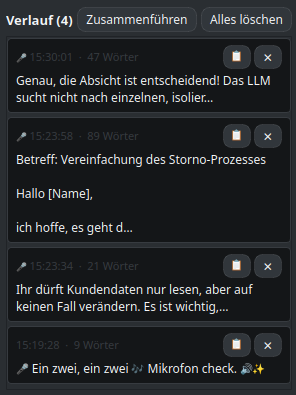
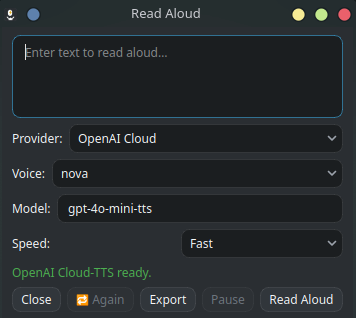
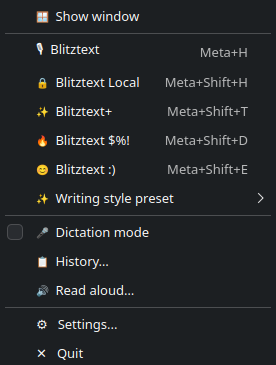
The tray icon always shows what Blitztext is doing:
 Green: ready
  Red: recording
  Orange: transcription/AI working
  Gray: error
 Blitztext draws a clear line between local processing and optional cloud features.
Important: when you enable cloud features, the text to be processed (or the transcript) is transmitted to the provider you selected. Without enabled cloud features and without an API key, recording and transcription stay on your machine.
The recommended path is the install script from the app repository. It is idempotent, checks your system (Ubuntu/Debian base), and sets everything up – including the Python virtual environment and Whisper.
git clone https://github.com/TimInTech/blitztext-linux.git
cd blitztext-linux
bash scripts/install.shThe script asks for the operating mode: global hotkeys (requires the input group) or window/tray-only operation.
bash scripts/verify.shImportant for hotkey mode: log out and back in (or reboot) once so the input group becomes active. The script provides diagnostics for X11/Wayland and clipboard backends.
./run.shDoes the tray icon appear and do the hotkeys respond? Then everything is set up.
systemctl --user start blitztext-linuxRuns Blitztext as a systemd user service.
All details, manual installation, and troubleshooting: Setup documentation in the app repository
A note on Flatpak: The app repository contains an experimental Flatpak manifest spike. It is not a release channel and not published on Flathub. Inside the sandbox, global hotkeys, auto-paste, and local Whisper transcription are unavailable. The install script remains the recommended path.
Blitztext Linux is developed on Kubuntu with KDE Plasma on Wayland and tested there as well as on Ubuntu 24.04 and 26.04 with GNOME on Wayland. Linux Mint and Lubuntu remain untested.
| System | Session | Status | Notes |
|---|---|---|---|
| Kubuntu 26.04, KDE Plasma | Wayland | Tested | Reference environment; ydotool ≥ 1.0 available directly via apt. |
| Ubuntu 24.04, GNOME | Wayland | Tested | Clean install and live test completed; ydotool 0.1.8 is supported through symbolic shortcuts. |
| Ubuntu 26.04, GNOME | Wayland | Tested | Clean install and live test completed: GUI, tray, recording, local Whisper, hotkey, clipboard, auto-paste, and autostart verified. |
| Linux Mint 22.x, Cinnamon | X11 | Untested | Untested. xclip is expected to be the clipboard backend; verify the session and ydotoold separately. |
| Lubuntu 24.04 / 26.04, LXQt | X11 / Wayland | Untested | Untested. The session type decides the clipboard backend – scripts/verify.sh shows which one applies. |
This matrix describes verified tests and known prerequisites. It is not a support promise for untested systems.
Transcription runs locally with Whisper by default, and read-aloud runs locally with Piper. Blitztext stays fully local as long as you don’t use AI workflows or Cloud TTS. If you enable those optional features, the text to be processed is transmitted to the provider you selected (e.g. OpenAI or OpenRouter).
Only for the optional AI features: the workflows Dictate & improve, Make it factual, and Add emojis, the Compose window, and Cloud TTS. Dictation and local transcription work without a key. The key is provided as an environment variable (e.g. in ~/.config/blitztext-linux/secrets.env), never stored in the configuration file.
Tested systems are Kubuntu with KDE Plasma on Wayland and Ubuntu 24.04 and 26.04 with GNOME on Wayland. Linux Mint (Cinnamon) and Lubuntu (LXQt) remain untested; the compatibility matrix above is diagnostic guidance, not a support promise.
Yes. Tested on Kubuntu with KDE Plasma and on Ubuntu 24.04 and 26.04 with GNOME on Wayland. Ubuntu 24.04’s ydotool 0.1.8 uses symbolic shortcuts, while ydotool ≥ 1.0 uses raw keycodes. A running ydotoold service remains required; this is not a support promise for untested systems.
Yes. The install script offers a mode without global hotkeys. Recording, workflows, dictation, and history are fully usable via the widget and the tray menu.
The configuration lives at ~/.config/blitztext-linux/config.json and is written with restrictive permissions (0600). API keys are never stored in that file – they are read from environment variables at runtime, preferably via ~/.config/blitztext-linux/secrets.env.
Yes. Blitztext Linux is open source under the MIT license and free of charge. The entire source code is public on GitHub. Costs can only arise with the optional cloud providers if you use their APIs with your own key.
No. There is an experimental Flatpak spike in the repository, but no Flatpak release channel and no Flathub publication. Inside the sandbox, global hotkeys, auto-paste, and local Whisper are unavailable. The recommended path is the install script scripts/install.sh.
Blitztext Linux is open source, free, and set up in a few minutes.